Test the microphone
Open the transcription tool, allow microphone access if prompted, and say a complete sentence at normal volume. Confirm that words appear and that the selected input is yours, not an inactive headset or another device.
Live speech to text
A live transcript lets you follow spoken words while a conversation is still underway. Set up your microphone first, then check the text against what you hear; speech recognition can miss names, overlap, and quiet voices.
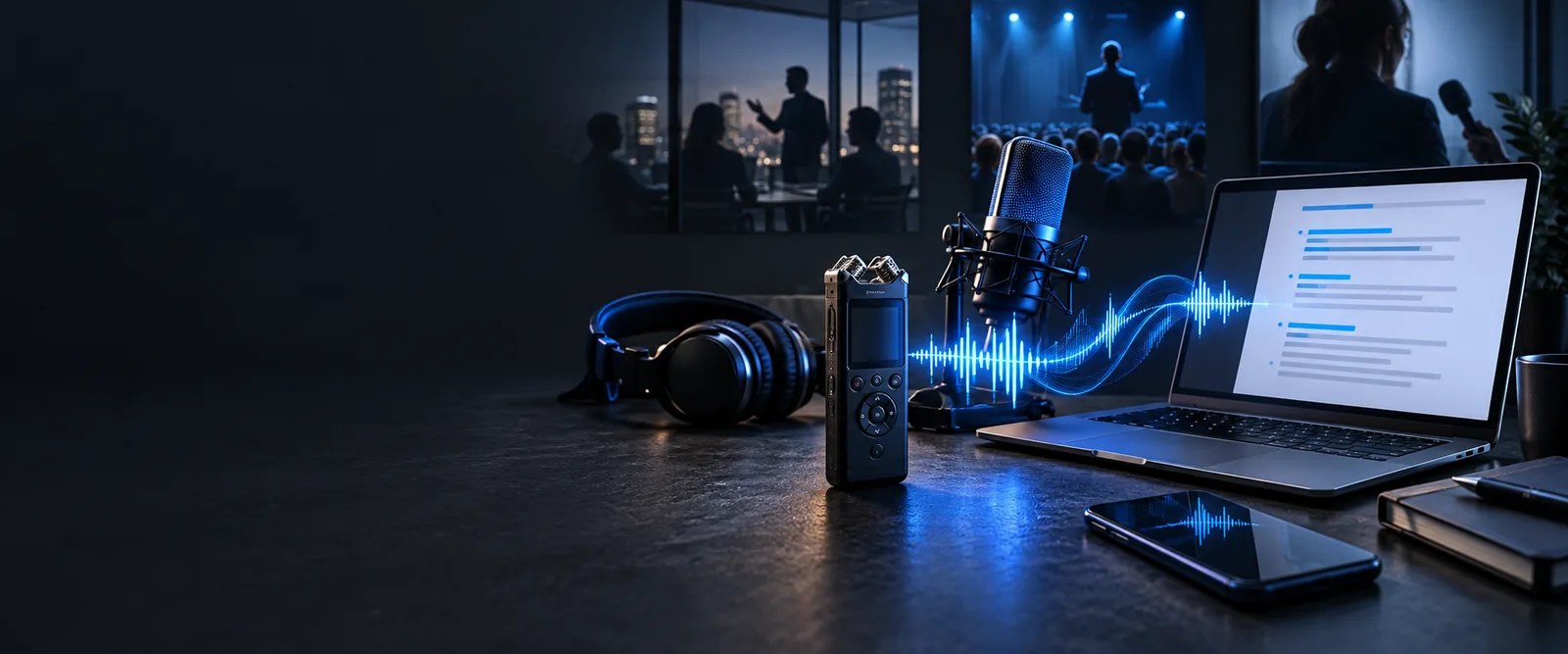
Before the conversation begins, choose a quiet position, test the input level, and confirm that your browser can access the intended microphone.
Use this guide when you have a recording to process rather than speech to capture as it happens.
See how recorded audio becomes editable text when a live microphone is not the right input.
Check the recorded-audio workflow when you want to work without creating an account.
Treat the first minute as a test, not the beginning of an unrepeatable recording.
Open the transcription tool, allow microphone access if prompted, and say a complete sentence at normal volume. Confirm that words appear and that the selected input is yours, not an inactive headset or another device.
Start the session and keep the microphone close enough to hear each speaker. Watch for long gaps, repeated words, or a frozen transcript. If names matter, jot down their spellings so you can correct them afterward.
When the conversation ends, read the text while the discussion is still fresh. Restore missing speaker turns, check numbers and proper nouns, and copy or save the corrected version using the options your tool provides.
Both routes produce text, but only microphone capture follows speech in progress. Pick the route that matches what you actually have.
Live microphone
Speech entering a selected microphone
Recorded audio
An existing audio file
Live microphone
During the conversation, subject to processing delay
Recorded audio
After the file is submitted for processing
Live microphone
Following a talk or drafting notes in the moment
Recorded audio
Working from an interview or meeting that has ended
Live microphone
Microphone permission and input level
Recorded audio
File compatibility and audible recording quality
Live microphone
Difficult without a separate recording
Recorded audio
Replay the source and correct the text
Live microphone
Catch dropped passages and speaker changes
Recorded audio
Check unclear passages against the source file
A transcript is a draft, not proof that every word was captured. Overlapping voices, background noise, and a blocked microphone can make readable text misleading.

These images illustrate the workflow, not a guaranteed transcription result. If text stops updating, check microphone permission and the selected input before continuing. For important conversations, keep a separate recording when everyone involved has agreed to it.
Start with one sentence and verify that it appears correctly before relying on the transcript for a longer conversation. Keep listening as you transcribe; pause to resolve an input problem rather than letting missing speech accumulate.
A browser-based tool can capture live speech if it supports microphone input and your browser grants permission. Speak a test sentence before the session so you know the correct microphone is active.
It can capture speech from more than one person when the microphone hears them clearly. Speaker labels may be missing or inaccurate, especially when people interrupt each other, so review turns before sharing the text.
The microphone may have been disconnected, the wrong input may be selected, or the browser may no longer have access to it. Check those settings and try another short test sentence; do not assume words spoken during the interruption were retained.
Treat it as a working draft. Names, figures, accents, quiet speech, and overlapping voices need particular attention, so check consequential details against a recording or your own notes when available.